Radar-driven thunderstorms
QuextFlight uses current NEXRAD radar returns to build simulated storm cells, with precipitation, visibility and turbulence shaped by radar intensity and available weather observations.

Your simulator. Your familiar EFB.
Follow your simulator’s position, heading, altitude and time in QuextFlight on iPad. Go beyond position with METAR conditions, radar-driven storms, satellite IR cloud-top estimates and lightning observations.
Illustrative artwork. Not an actual X-Plane screenshot.
Real observations. Simulator weather.
QuextFlight brings available weather observations together and sends weather updates to the plugin. The plugin applies those inputs in X-Plane, connecting your iPad briefing with the conditions you fly through in the simulator.
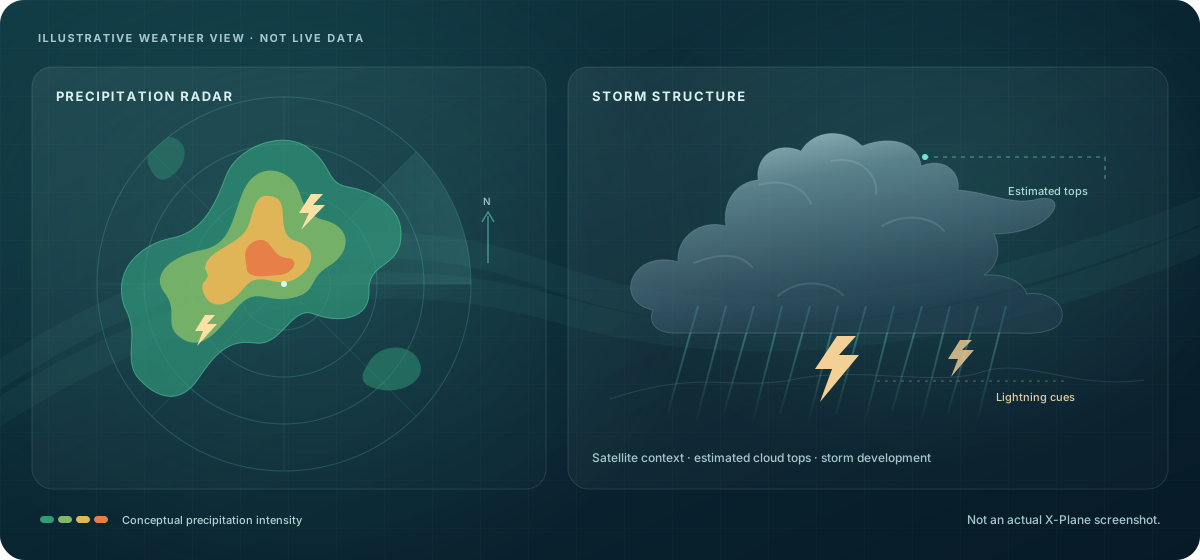
QuextFlight uses current NEXRAD radar returns to build simulated storm cells, with precipitation, visibility and turbulence shaped by radar intensity and available weather observations.
GOES longwave infrared imagery contributes estimated cloud tops to the weather model, adding vertical context to simulated cloud layers.
NOAA GOES lightning-flash detections help identify convective activity and inform simulated storm conditions.
Reported wind, pressure, temperature, visibility and cloud bases provide an observed foundation for simulator weather. Bring airport conditions into the same flight-planning workflow you use on iPad.
Weather depiction is a model from available observations. Cloud tops are estimates; feed coverage and update times vary. Lightning observations provide storm context, rather than exact strike-by-strike reconstruction.
Lightning source: NOAA GOES Geostationary Lightning Mapper. Weather feeds are gathered by QuextFlight; the plugin receives weather updates over your local network.
Before you begin
This optional plugin connects your Windows simulator to the QuextFlight iPad app.
From download to simulator
Close X-Plane, then run the Windows installer. It detects valid simulator installations. If it finds several, choose the one you want. If it finds none, browse to your X-Plane folder.
Launch X-Plane and load a flight. Keep the PC and iPad on the same local network. If Windows asks for network access, allow it on your trusted private network.
In QuextFlight, open Settings > Preferences and turn on Enable X-Plane, then select X-Plane as the position source. Allow iPadOS Local Network access. Confirm the position follows your simulator.
These instructions apply to the signed 1.1.0 Windows installer. The legacy 1.0.1 setup guide describes the earlier unsigned ZIP package; its script-based installation and removal steps do not apply to this installer.
Keep your installation tidy
Close X-Plane before changing the plugin. Keep a copy of any custom configuration before upgrading.
Run the new installer and select the same X-Plane installation. Upgrades preserve configuration and user files and back up the previous FlightCommand folder outside the active plugin directory at <X-Plane>\.quextflight-plugin-backups. If legacy AviateTelemetry is present, the installer refuses to continue: with X-Plane closed, manually move that folder outside Resources\plugins first and keep its configuration and assets. Keep backups until you have confirmed the installation works. Avoid loading duplicate telemetry plugins.
Close X-Plane, run the same downloaded installer, select your installation and choose its Uninstall button. It moves the entire FlightCommand folder into an inactive backup outside Resources\plugins, preserving configuration and user data. Other plugins and previous backups remain in place; legacy AviateTelemetry is not re-enabled.
Good to know
The plugin discovers the iPad through its beacon and sends UDP JSON telemetry on port 49042 at 20 Hz. No Node.js bridge or cloud service is needed. Use a trusted LAN: compatible clients can also send simulator route, direct-to, flight-guidance, test-setup and weather commands. Verify resulting simulator changes and restore your intended position source after use.
Optional cockpit-display assets are excluded. This download is for the Windows x64 simulator connection.
Check that both devices are on the same local network and that QuextFlight is using X-Plane as its position source. Guest Wi-Fi, network isolation, VPNs and firewall rules can prevent devices from communicating. Check iPadOS Local Network permission and local X-Plane UDP 49042 firewall rules, or contact support.
This installer supports Windows on Intel/AMD x64 PCs and X-Plane 12.3.0 or later in the 12 series. It does not support Windows ARM64, X-Plane 11, macOS or Linux.
Release README · Third-party notices · SHA-256 checksums
For flight simulation. Confirm that simulator data is selected only for your simulator session.